carousel-67e2c9d0
Revision 1
Carousel
Turn your Mosaico screen into a customizable text sign. Enter words or sentences, choose a style, and display them as rotating cards or a scrolling marquee. Everything works offline.
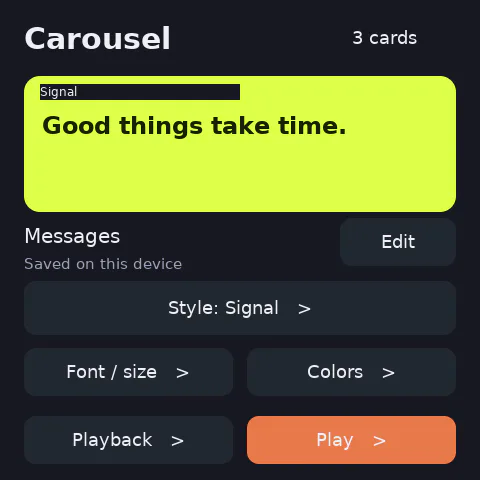
- Save up to 12 messages, with 160 printable English characters per message.
- Choose from 12 presets: Signal, Paper, Terminal, Sunset, Ocean, Bubblegum, Classic, Arcade, Noir, Amber, Lavender and Mint.
- Customize the text and background colors independently with a live preview.
- Choose bold sans, serif or mono text, in 24, 36, 52 or 72 pixel sizes.
- Set cards to change every 1–30 seconds, or scroll at 20–160 pixels per second.
- Keep messages and appearance settings saved on the device between restarts.
Hardware and setup
For the ESP-Mosaico main board with ESP32-S31, 16 MiB flash and its 480 × 480 touchscreen. No expansion board, wiring, Wi-Fi, account or external service is needed to use the app.
Install the supplied Iris system-update package through Mosaico's supported firmware workflow. The package includes the application, its partition layout and the screen resources. It preserves the retained Vibe Mode firmware.
How to use
Tap Edit to view your messages. Use the arrows to select one, Edit message to change it, or Add message to create another. The on-screen keyboard's OK key saves the message; Back cancels an unfinished edit. Earlier and Later change the order. Tap Remove twice to confirm deletion.
Choose Style, Font / size, Colors or Playback to customize the sign. A preset sets the font and colors; you can adjust them afterward.
Tap Play to display your messages. Tap the screen to pause or resume. Hold the screen to open controls, then select the previous or next message, tap Resume, or tap Editor to return to the studio.
Validation and limits
The shared C logic and native touch flows passed checks for editing, input validation, message order, deletion, all presets, colors, fonts, card timing, scrolling, pause and hold controls. A 160-character message fitted on screen, and saved messages and settings survived a complete simulator restart. The ESP32-S31 firmware build passed with zero warnings.
Physical-device display, touch behavior and persistence have not yet been tested. The screenshot is from the native simulator, using the official simulator 1.6.0 with the pinned GSP 1.5.1 backend and bundle because the simulator 1.5.1 download was unavailable.
This release supports printable English letters, numbers and punctuation. Chinese characters and other Unicode text are not supported. Cards wrap text and reduce its size when needed. The studio preview shows the beginning of long messages. Empty messages are rejected; save failures are shown on screen and retain the edits in memory for retry.
Font credits
Uses DejaVu Sans, DejaVu Serif and DejaVu Sans Mono. The Bitstream Vera copyright, permission notice and DejaVu attribution are included in the font license.